
Guide
Understand Video Format & Quality — Best Video Quality to Download
Updated Jul 26, 2026
Learn MP4 quality options (1080p, 720p, 480p), bitrate, and when to choose each. Download smarter with YouTube to MP4, Video Downloader, Shorts Downloader, or YouTube to MP3.

Free YouTube Download Tools
Resolution cheat sheet
| Resolution | Label | Best for | Notes |
|---|---|---|---|
| 1080p | Full HD | Laptops, TVs, archives, editing | Sharpest common Instant Download; larger file size |
| 720p | HD | Phones and most offline viewing | Best balance of quality vs storage for everyday use |
| 480p | SD | Weak Wi‑Fi, drafts, limited storage | Smaller save; still fine for many chat shares |
| 360p | Low SD | Very limited storage or slow networks | Noticeably softer on larger screens |
| 240p | Low | Emergency / rough previews | Use only when higher qualities are unavailable |
| 144p | Lowest | Minimal file size checks | Preview-only; not for watching or editing |
What “quality” really means
Resolution (720p, 1080p) is how many pixels you get. Bitrate is how much data those pixels use per second — higher bitrate usually looks cleaner at the same resolution. YouTube may not offer every resolution for every upload; Shorts especially vary by how the creator exported the clip.
Best quality by use case
- Phone offline watching → 720p MP4 keeps detail without wasting space
- Laptop / TV / projector → 1080p when available
- Editing in CapCut / Premiere → highest available MP4 with audio
- Sharing in chat apps → 480p–720p to stay under size limits
- Music / podcasts only → skip video and use YouTube to MP3 Converter
Why MP4 is usually the right format
MP4 (often H.264 + AAC) plays almost everywhere: iPhone, Android, Windows, Mac, and most editors. That is why YouTube to MP4 Converter, YouTube Video Downloader, and YouTube Shorts Downloader focus on MP4 Instant Download instead of niche containers.
How to choose inside FrontendGeek
- 1
Load the video
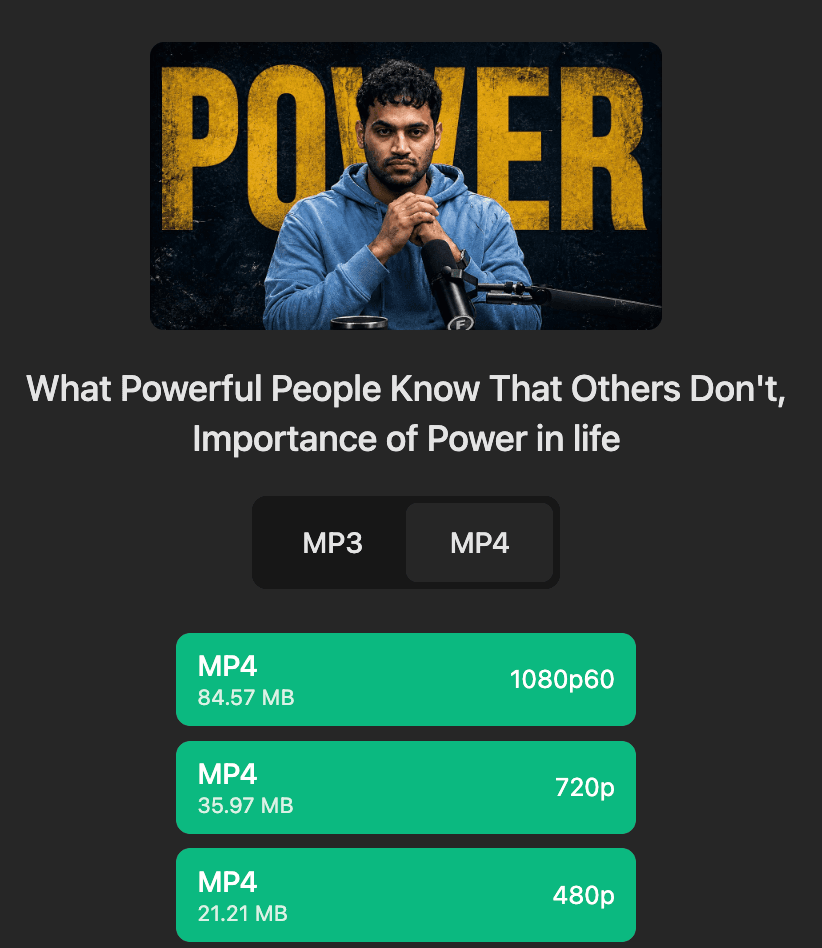
Paste into YouTube to MP4 or Video Downloader (or Shorts Downloader for /shorts/ links) and wait for quality options.

- 2
Match quality to the screen
If you will mainly watch on a phone, 720p is often indistinguishable from 1080p while saving megabytes.
- 3
Prefer streams with audio
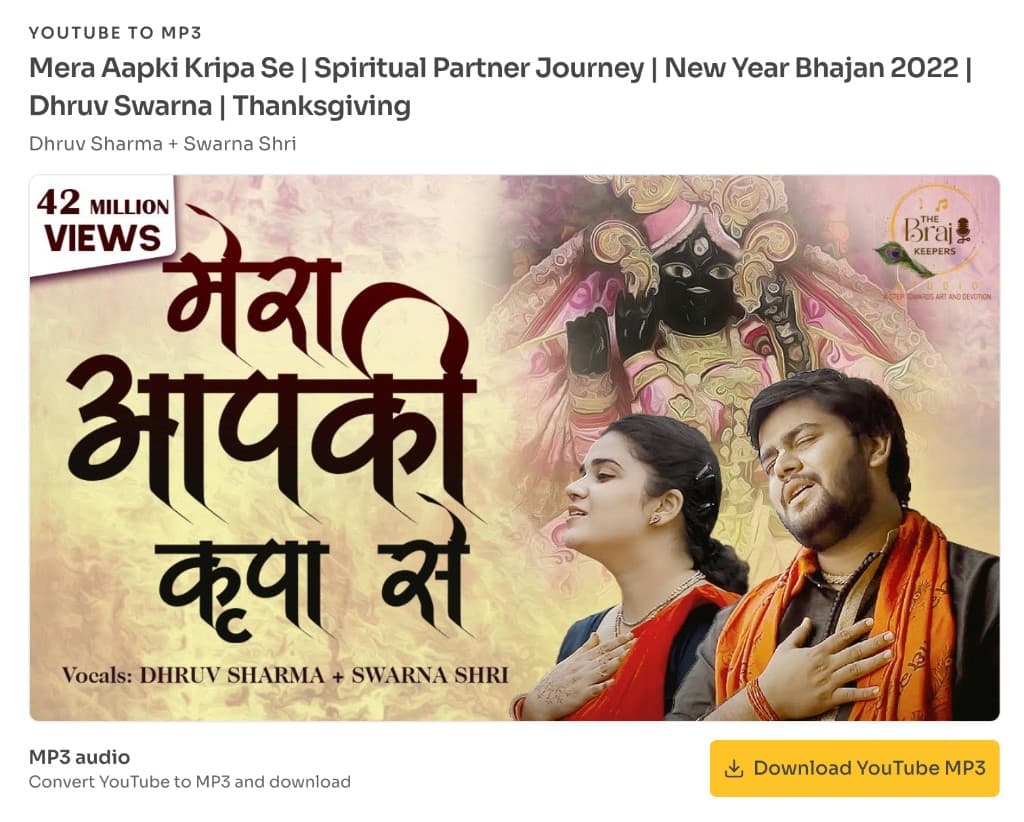
Pick a listed MP4 quality that includes sound. If you only need the track, switch to YouTube to MP3 Converter.
File size expectations
A 10‑minute 1080p video can be tens to hundreds of megabytes; a 30‑second Short is often under 20 MB at high quality. Exact size depends on length, motion, and bitrate — treat tables on tool pages as approximate guides.
Explore More Guides


Or browse the full Tools How to Guide.
Found this guide useful?
Share it with someone learning YouTube downloads