
Guide
How to Download YouTube Videos as MP4
Updated Jul 26, 2026
Want a YouTube clip on your phone or laptop as an MP4 file? This guide walks through a reliable browser flow — paste the URL, preview the video, pick a quality, and download. Use it for videos you own, public-domain content, or material you have permission to save offline.
Free YouTube Download Tools
What you need before you start
- A modern browser (Chrome, Safari, Edge, or Firefox)
- The full YouTube or Shorts URL from the address bar or Share menu
- A free FrontendGeek sign-in when the download step requires it
- Enough storage for the file size of the quality you choose
Step-by-step: download a YouTube video as MP4
- 1
Open the YouTube to MP4 Converter
Go to the YouTube to MP4 Converter on FrontendGeek. For longer watch pages use YouTube Video Downloader; for vertical clips use YouTube Shorts Downloader.
- 2
Paste the YouTube URL
Copy the video link from YouTube and paste it into the input field. Shorts links that contain /shorts/ work the same way on the Shorts Downloader.

- 3
Load and preview
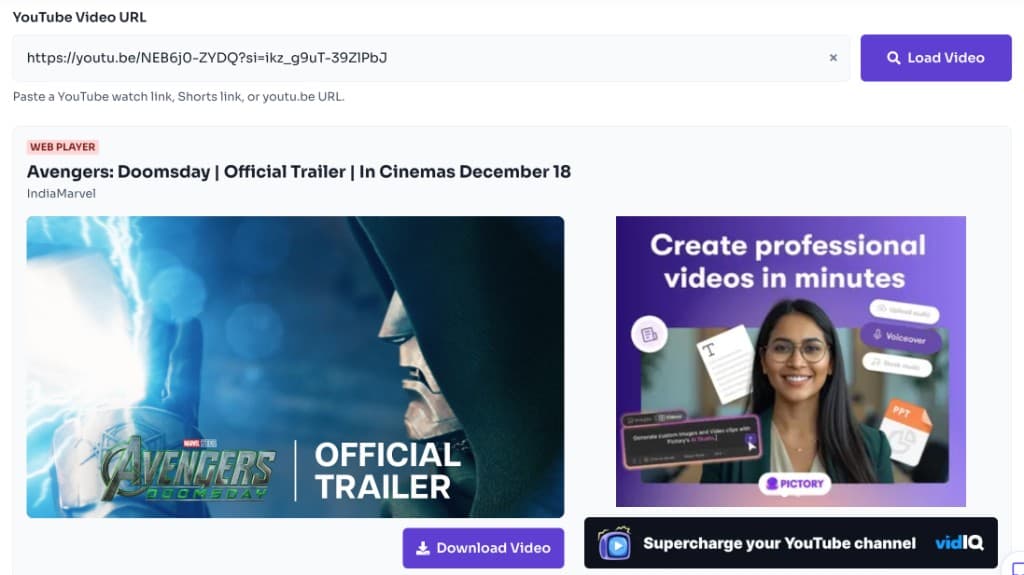
Click Load Video so the tool fetches the clip. Confirm the title, channel, and WEB PLAYER thumbnail match the video you intended before you download.

- 4
Choose MP4 quality
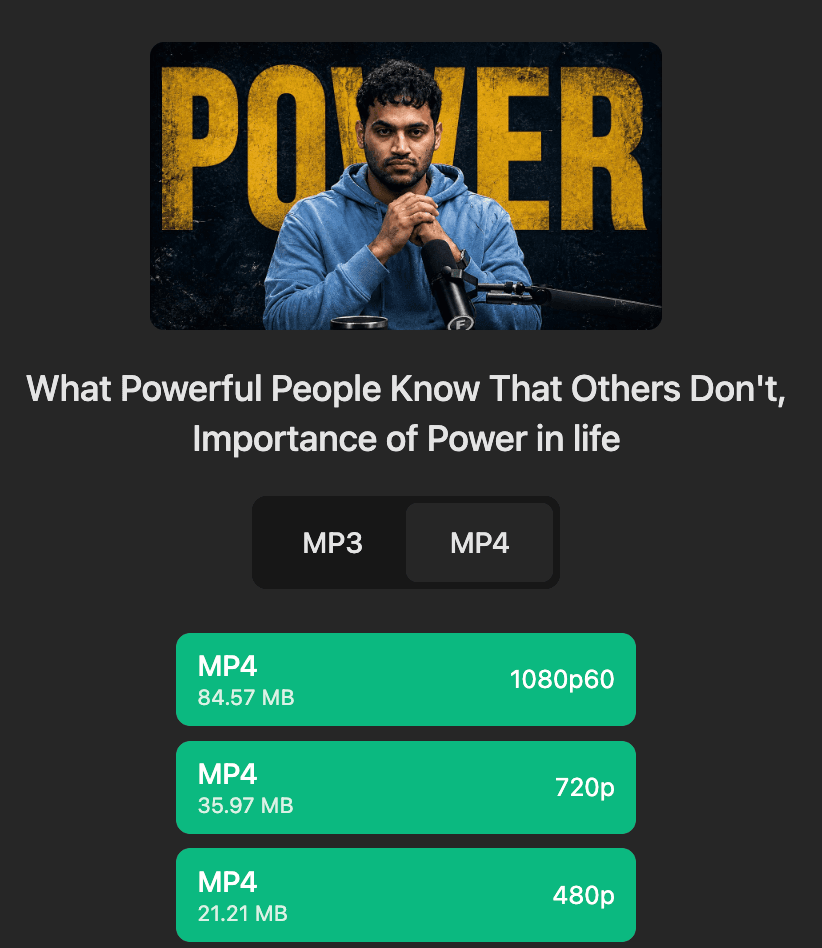
Pick 1080p, 720p, or a lower resolution based on storage and playback needs. Higher quality means a larger file.
- 5
Download the MP4
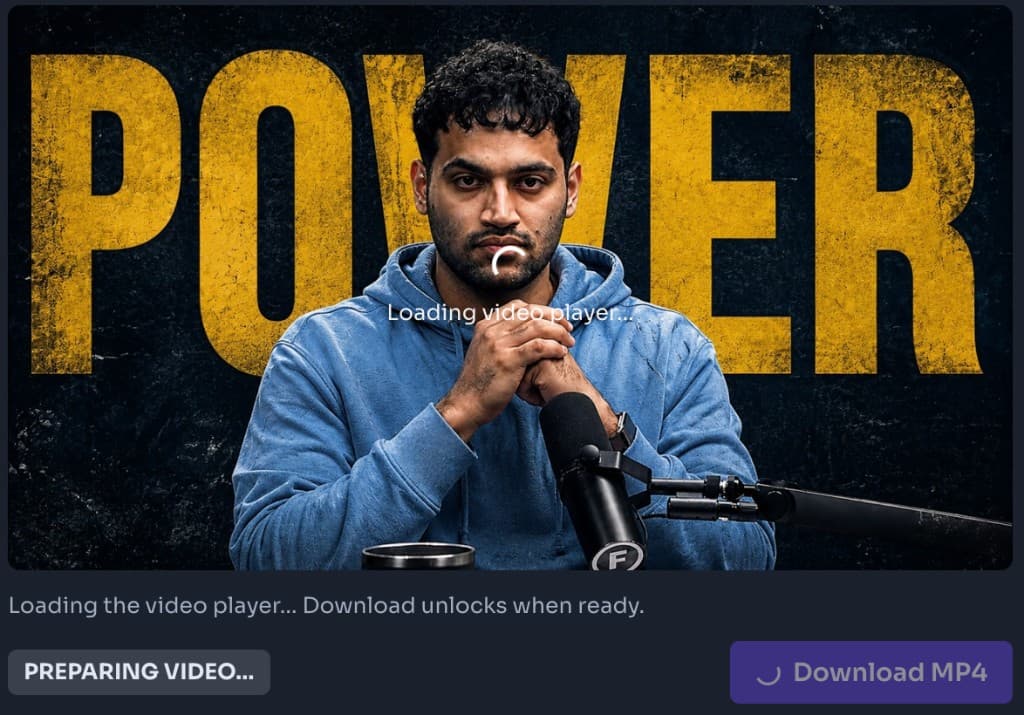
Click Download Video to start Instant Download. The MP4 saves to your browser Downloads folder — open it in Files (iPhone), Files app / Downloads (Android), or Finder / File Explorer on desktop.

Download Shorts vs regular videos
Regular YouTube videos and Shorts both save as MP4, but Shorts are vertical (9:16). Use YouTube Shorts Downloader when you specifically need a Shorts URL — the preview matches the phone-style frame. For standard landscape videos, YouTube to MP4 or YouTube Video Downloader is the better fit.
Need audio only instead?
If you only want the soundtrack, skip video download and use YouTube to MP3 Converter. You can also download MP4 first, then strip audio later with an MP4 to MP3 converter if you already have the video file.
Tips for a clean Instant Download
- Use the official share URL, not a shortened third-party redirect
- Stay on the page until the download finishes
- If a quality is missing, try another resolution — availability depends on the source upload
- Prefer MP4 for editing apps, CapCut, iMovie, and most phones
Legal & fair use reminder
Only download content you own, have licensed, or are otherwise allowed to keep. Respect YouTube’s Terms of Service and copyright. FrontendGeek tools are for legitimate offline use — not for redistributing someone else’s work.
More Guides for Social Tools, AI Tools & Other Developer Tools
 How Free Online Tools Grow Organic Traffic
YouTube MP4 Download Not Working [Troubleshooting]
Understand Video Format & Quality — Best Video Quality to Download
MP4 vs WebM — Understand the Difference
MP4 vs MOV — Understand the Difference
Why Sometimes YouTube Downloads Have No Audio [Troubleshooting]
Or browse the full Tools How to Guide.
Found this guide useful?
Share it with someone learning YouTube downloads