
Guide
How to Delete Instagram Account — Step by Step Guide (2026)
Updated Oct 14, 2026
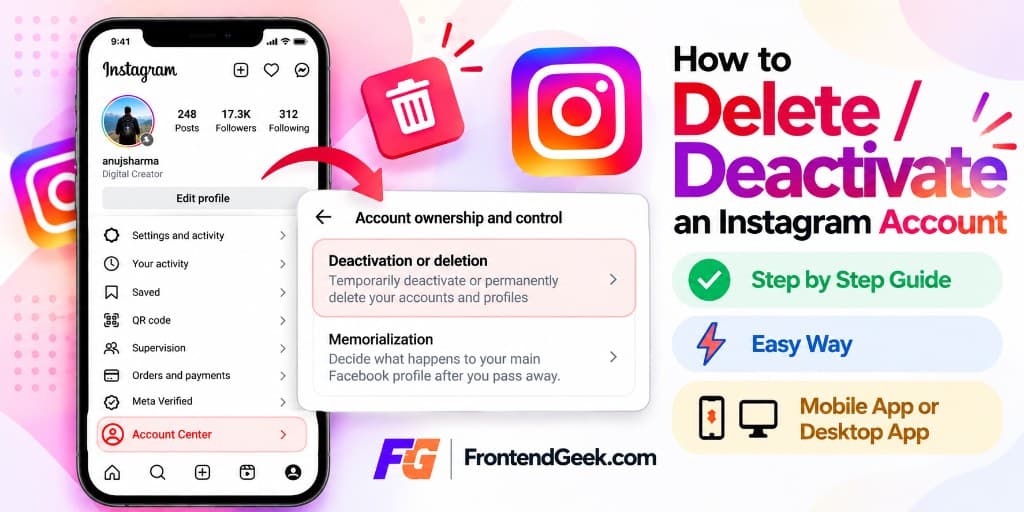
Step-by-step Visual Guide to Deactivate/Delete Instagram Account from Instagram mobile app or instagram website via Meta Accounts Center. Easy to follow steps with screenshots.
Free Instagram Downloader Tools
Before Deactivate/Delete Instagram account: Back up your data
Permanent deletion removes your profile, posts, Reels, comments, and likes. Meta also deletes a Threads profile created with the same Instagram account. Download your information from Accounts Center before you start — once deletion is requested, exporting can be blocked until you cancel. For quick photo saves before you leave, use the free Instagram Image Downloader.
- Save important photos, videos, and highlights offline
- Note connected Facebook or Threads logins so you are not locked out elsewhere
- Cancel paid Meta subscriptions tied to the account if needed
- Tell collaborators if a shared brand account is being removed
Understand Deactivate vs Delete Instagram Account
Deactivate temporarily hides your profile; you can return later by logging in. Delete permanently removes the account after a grace period (about 30 days). Choose Delete account only if you are sure you will not need the username or content again. If you still need copies of your clips first, save them with the Instagram Video Downloader.
| Option | What happens | Can you undo it? |
|---|---|---|
| Deactivate | Profile is hidden; content is kept | Yes — log in to reactivate |
| Delete | Profile is hidden, then permanently removed | Only during the ~30-day grace period by logging in |
Deactivate or Delete Instagram Account on Mobile App: Step-by-step
Use the Instagram app on iPhone or Android. Meta routes deactivation and permanent deletion through Accounts Center. Follow the screenshots below for the current mobile layout.
- 1
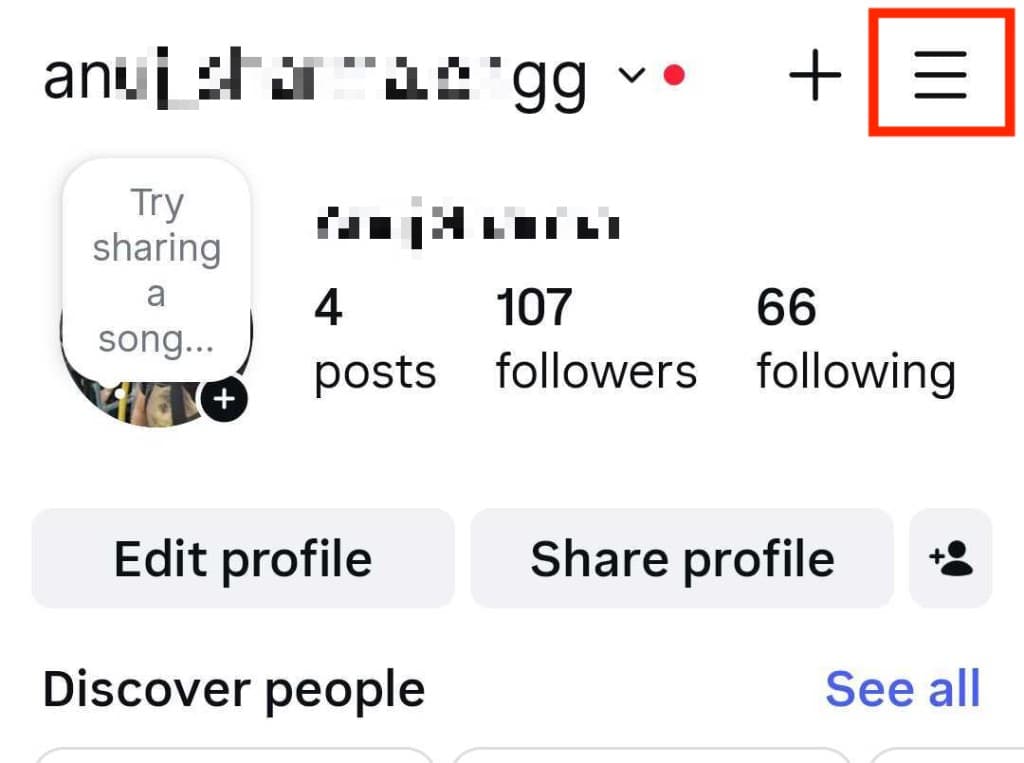
Open your Profile, then tap the burger menu
Open the Instagram app and tap your profile avatar (bottom right) to open your profile. In the top-right corner, tap the three-line burger menu. This opens Settings and activity, where you manage account options.
- 2
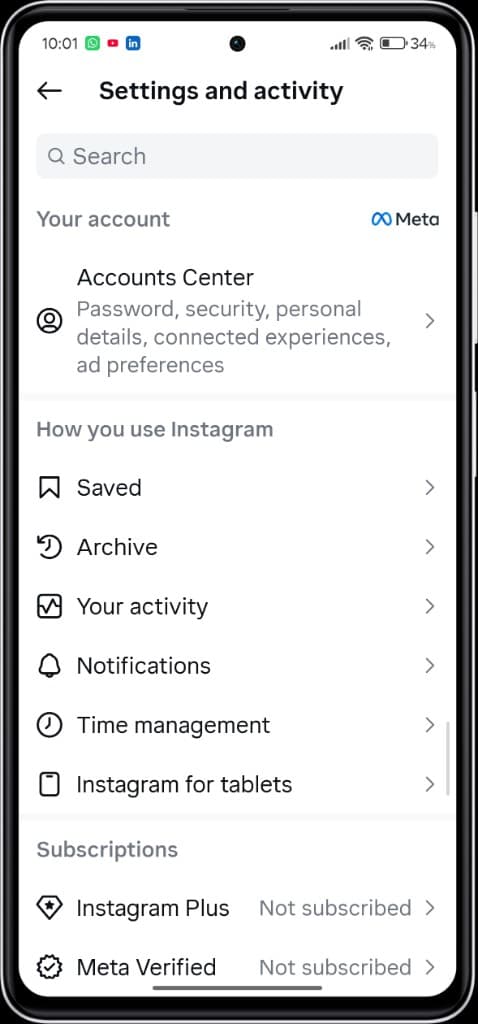
Open Accounts Center under Settings
On the Settings and activity screen, under Your account, tap Accounts Center (Meta logo). The subtitle mentions password, security, personal details, and connected experiences — that is the correct entry point for both deactivation and deletion.
- 3
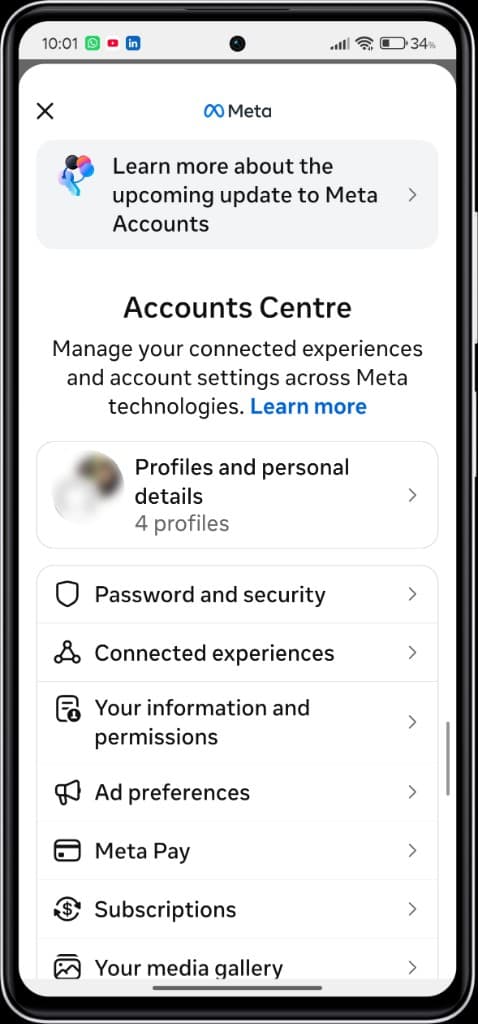
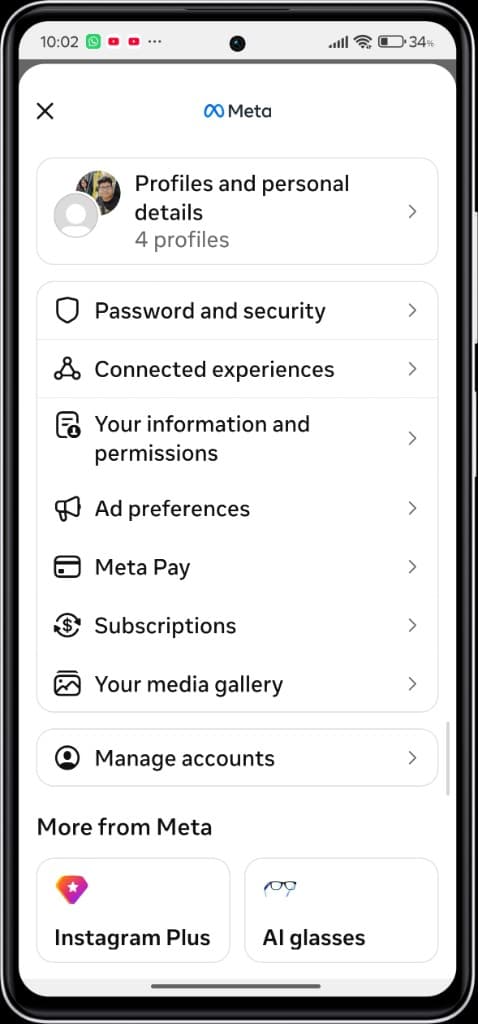
Open Accounts Centre and scroll toward Manage accounts
You land on Meta Accounts Centre. At the top you may see Profiles and personal details and other settings (Password and security, Connected experiences, and more). Do not stop at those options — scroll down to find Manage accounts near the bottom of this screen.
- 4
Tap Manage accounts at the bottom of Accounts Centre
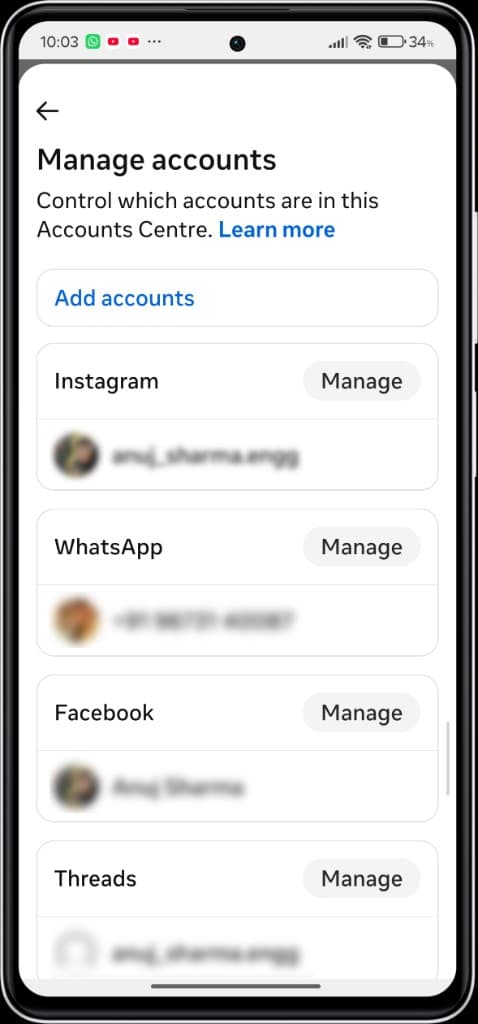
Keep scrolling until you see Manage accounts (person icon) above the More from Meta section. Tap Manage accounts to open the list of Instagram, Facebook, WhatsApp, and Threads accounts linked to this centre.
- 5
Select your Instagram account and tap Manage
On Manage accounts, find the Instagram section with your username. Tap Manage next to that Instagram account. This opens the Your Instagram account screen for that profile only.
- 6
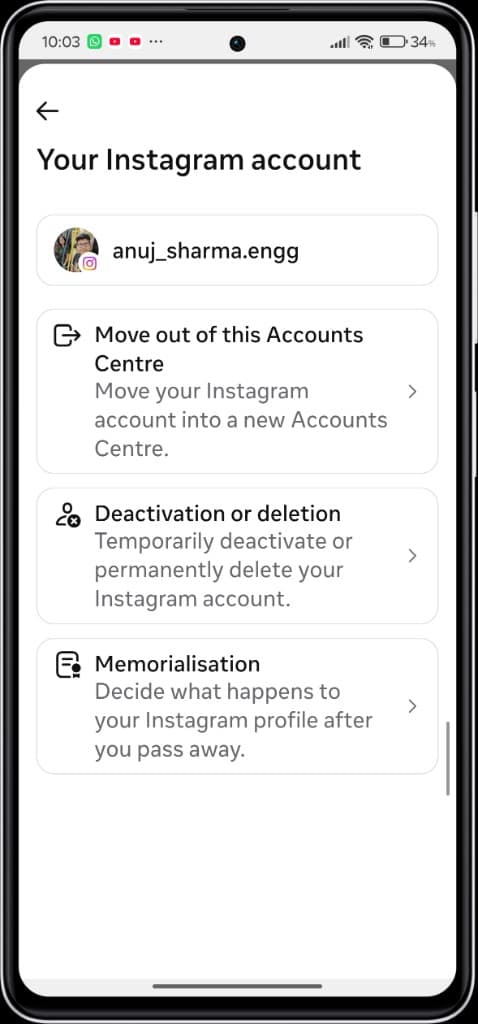
Choose Deactivation or deletion
On Your Instagram account, tap Deactivation or deletion — described as temporarily deactivating or permanently deleting your Instagram account. Skip Memorialisation and Move out of this Accounts Centre unless those are what you intend.
- 7
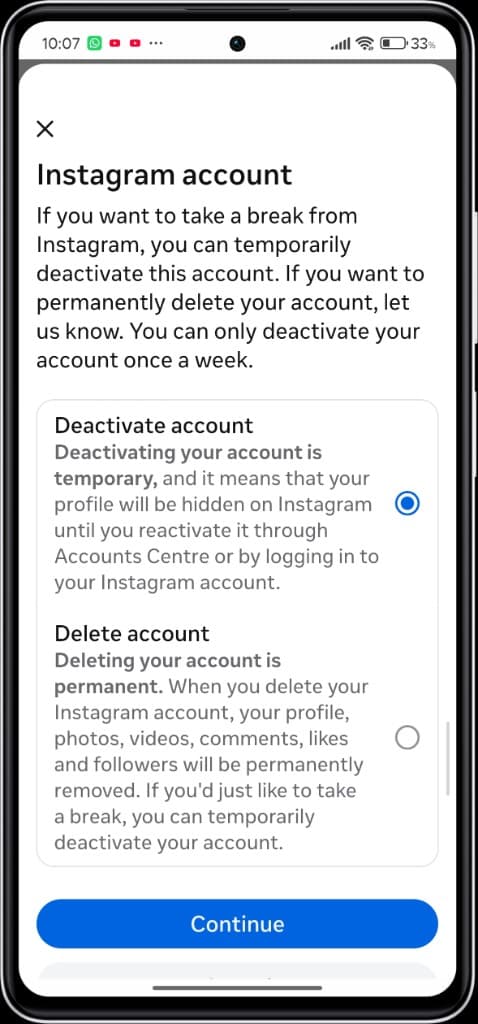
Pick Deactivate account or Delete account, then Continue
Select Deactivate account if you only want a temporary break (profile hidden until you log back in; you can usually deactivate once a week). Select Delete account if you want permanent removal of your profile, photos, videos, comments, likes, and followers after Meta’s grace period. Tap Continue, then complete the password and confirmation prompts. Stay logged out afterward if you chose deletion so you do not cancel the request by signing back in.
Deactivate or Delete Instagram Account on Website: Step-by-step
Use Instagram on the web (instagram.com) in a browser. Meta routes deactivation and permanent deletion through Accounts Centre. Follow the screenshots below for the current desktop layout.
- 1
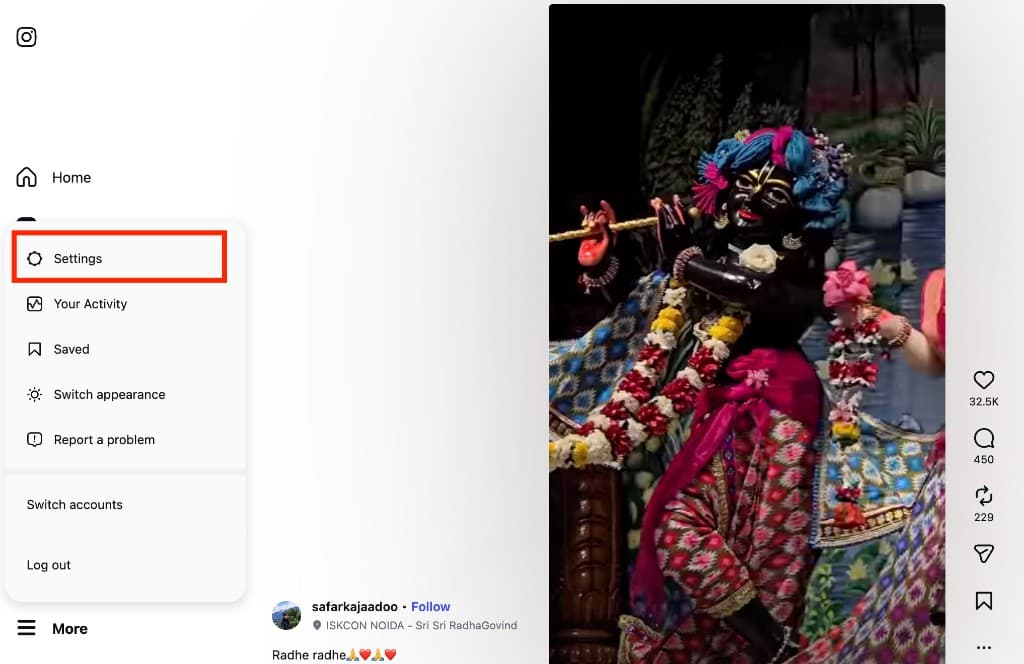
Open More in the side nav, then choose Settings
Sign in at instagram.com. In the left side navigation, click More (the three-line menu at the bottom). In the menu that opens, select Settings (gear icon). This opens Instagram’s Settings panel where Accounts Centre appears at the top.
- 2
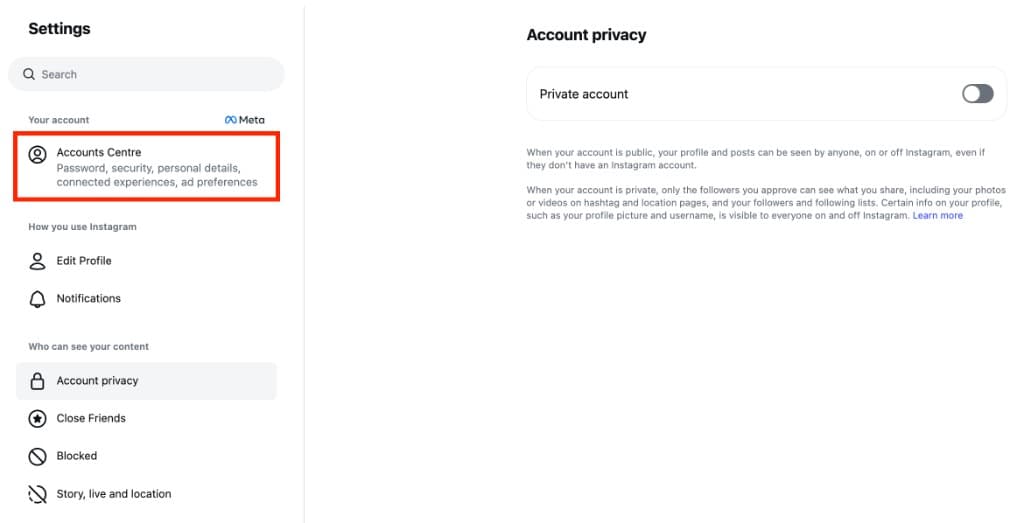
Open Accounts Centre from Settings
In the Settings sidebar under Your account, click Accounts Centre (Meta logo). The subtitle mentions password, security, personal details, and connected experiences — that is the correct entry point for both deactivation and deletion.
- 3
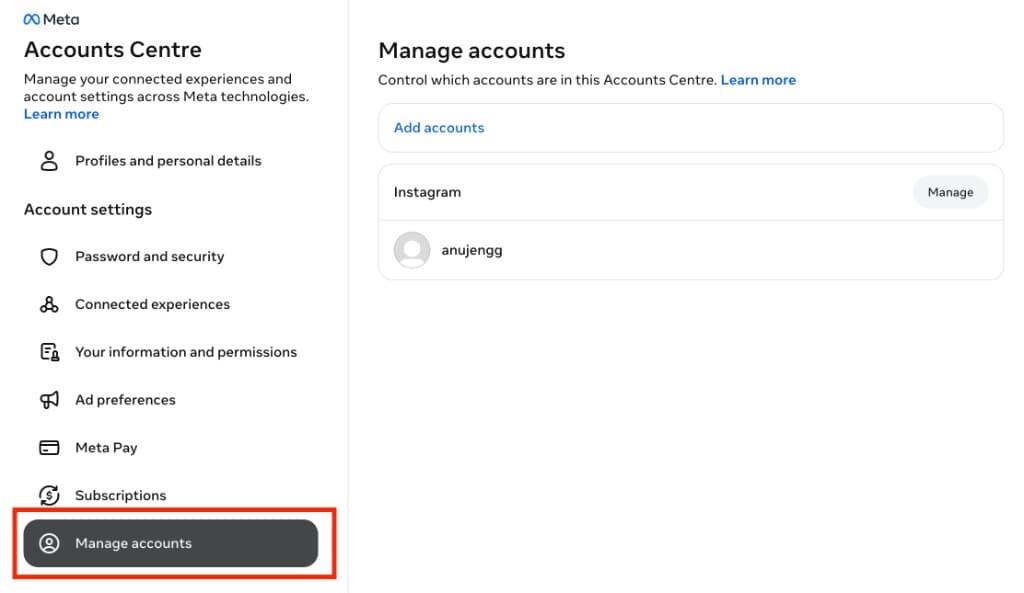
Go to Manage accounts in Accounts Centre
In Meta Accounts Centre, open Manage accounts in the left sidebar (usually near the bottom). You will see the Instagram accounts linked to this centre. Next to Instagram, click Manage for the account you want to deactivate or delete.
- 4
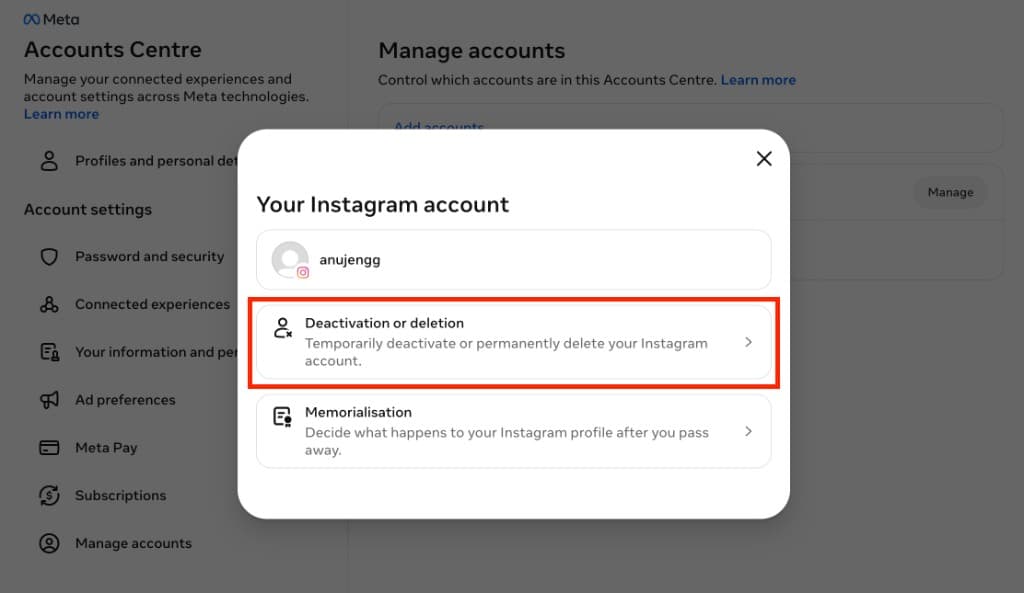
Choose Deactivation or deletion
A “Your Instagram account” panel opens. Click Deactivation or deletion — described as temporarily deactivating or permanently deleting your Instagram account. (Memorialisation is a different option for after you pass away and is not what you need here.)
- 5
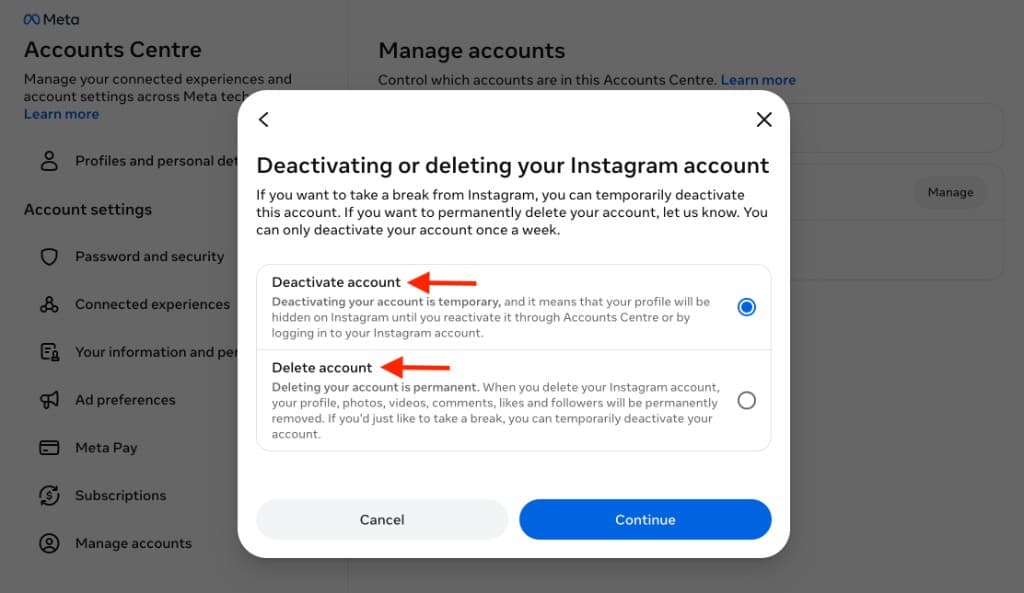
Pick Deactivate account or Delete account, then Continue
On “Deactivating or deleting your Instagram account,” select Deactivate account if you only want a temporary break (profile hidden until you log back in; you can usually deactivate once a week). Select Delete account if you want permanent removal of your profile, photos, videos, comments, likes, and followers after Meta’s grace period. Click Continue, then complete the password and confirmation prompts. Stay logged out afterward if you chose deletion so you do not cancel the request by signing back in.
What happens after you request deletion
Once deletion starts, your public content disappears quickly — so keep offline copies of Reels you care about with the Instagram Reel Downloader before you confirm.
- Your profile is hidden from search and other users immediately
- Logging back in within about 30 days usually cancels deletion and restores the account
- After the grace period, deletion becomes permanent and cannot be undone
- Meta may keep residual copies in backups for up to about 90 days before full purge
- Your Facebook account is separate — delete it from Facebook settings if you also want that removed
Troubleshooting
For Meta’s official instructions, open Permanently delete or deactivate your Instagram profile in the Instagram Help Centre. Labels can vary slightly while Meta migrates people to Meta Accounts.
- Cannot find Delete account — look under Accounts Center / Meta Account, not only the old Instagram-only Settings pages
- Password rejected — reset Instagram password, then retry deletion
- Shared device keeps signing you in — log out of the app and browser so the grace period is not cancelled
- Need official wording — see Meta’s help article on permanently deleting or deactivating Instagram
Frequently Asked Questions
Common questions about How to Delete Instagram Account — Step by Step Guide (2026)
- What is the difference between deactivating and deleting an Instagram account?
Deactivate temporarily hides your profile; you can come back later by logging in. Delete permanently removes your profile, photos, videos, comments, likes, and followers after Meta’s grace period (about 30 days). Choose Delete only if you do not need the account again.
- How do I delete my Instagram account on the mobile app?
Open Profile → burger menu → Settings and activity → Accounts Center → Manage accounts (near the bottom) → Manage next to Instagram → Deactivation or deletion → Delete account → Continue, then confirm with your password.
- How do I delete my Instagram account on the website (desktop)?
Sign in at instagram.com → More → Settings → Accounts Centre → Manage accounts → Manage next to Instagram → Deactivation or deletion → Delete account → Continue, then confirm with your password.
- Can I recover a deleted Instagram account?
Yes, usually within about 30 days by logging back in — that cancels the deletion request. After the grace period, deletion is permanent and cannot be undone.
- Does deleting Instagram also delete my Threads account?
Yes. Meta also deletes a Threads profile that was created with the same Instagram account. Download your data first if you want to keep anything.
- Will deleting Instagram delete my Facebook account?
No. Facebook is separate. Deleting Instagram does not remove your Facebook account — delete Facebook from Facebook settings if you also want that removed.
- Why can’t I find the Delete account option?
Meta moved this into Accounts Center (Accounts Centre). Look under Manage accounts → Manage → Deactivation or deletion, not only older Instagram-only Settings pages. Labels can vary slightly while Meta updates the UI.
- Should I download my Instagram data before deleting?
Yes, if you want to keep photos, videos, or messages. Once deletion is requested, exporting your information can be blocked until you cancel the request.
Explore More Guides
 How to Download Instagram Reels for Free — Instant HD MP4 Download
 How to Download Instagram Videos for Free (Instagram to MP4)
Understand Video Format & Quality — Best Video Quality to Download
MP4 vs WebM — Understand the Difference
MP4 vs MOV — Understand the Difference
Or browse the full Tools How to Guide.
Found this guide useful?
Share it with someone learning YouTube downloads