
Guide
How to Extract YouTube Title and Description Instantly
Updated Oct 27, 2026
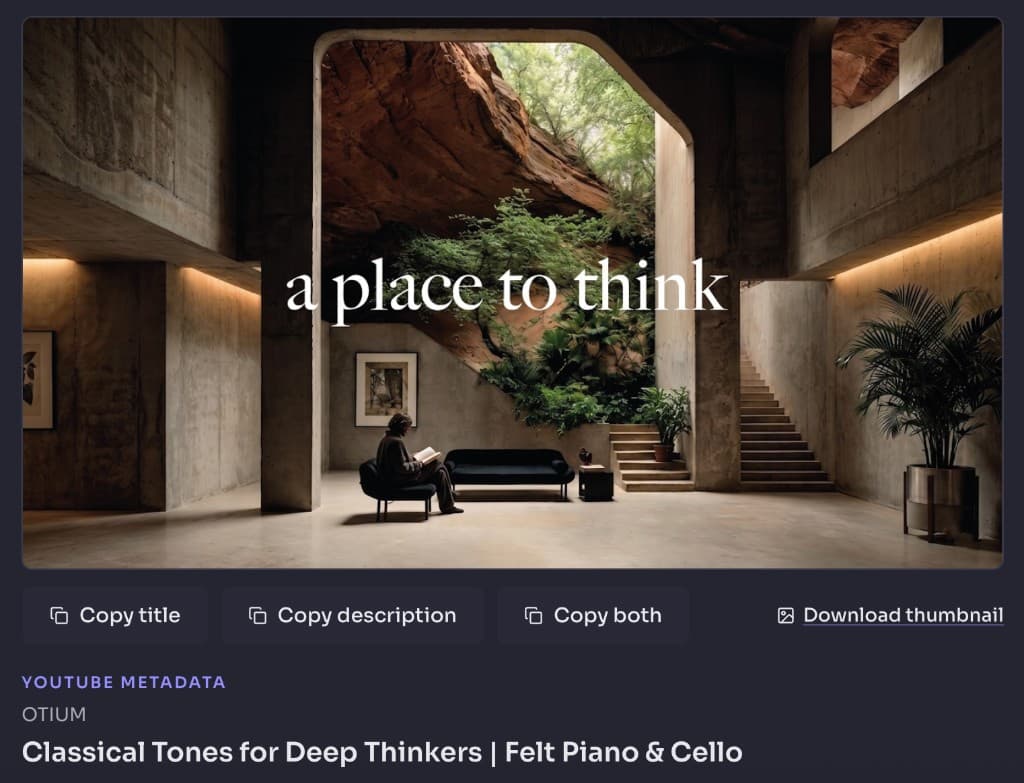
Learn how to extract YouTube title and description for free Instantly. Paste a public URL into YouTube Title & Description Extractor to copy packaging for SEO research, audits, and repurposing. Free, Fast & No Login Required
Free YouTube Download Tools
When You Need to Extract YouTube Title & Description
Downloaders save media files. This extractor pulls public packaging text: the headline viewers see and the full description under the video. Use it when you are researching competitor titles, auditing your own catalogue, drafting a blog from a video outline, or archiving metadata for an SEO tracker — without opening YouTube Studio.
Competitor title research
Capture how top videos phrase hooks, keywords, and length.
Description audits
Pull timestamps, links, and CTA patterns from public descriptions.
Repurpose into blogs
Turn description outlines into newsletter or article drafts you own.
No Studio login
Read public metadata from a watch URL without creator dashboard access.
Shorts & watch pages
Works with standard videos, Shorts, and youtu.be links.
Respect reuse rules
Only reuse text you own or have permission to republish.
Extract YouTube Title and Description: Step-by-Step
Use the free YouTube Title & Description Extractor — no desktop software and no download of the video file.
- 1
Step 1: Copy the YouTube video URL
Open a public YouTube video or Short and copy the link from the address bar or Share menu.

- 2
Step 2: Open the Title & Description Extractor
Open the YouTube Title & Description Extractor on FrontendGeek.

- 3
Step 3: Paste and extract
Paste the URL and click Extract Title & Description. Review the title, channel, thumbnail, and full public description.

- 4
Step 4: Copy what you need
Copy the title, description, or both into your notes, CMS, or SEO sheet. Always credit sources and only republish text you are allowed to use.

Try the Title & Description Extractor
Free browser tool · Public metadata · One-click copy
Open Title & Description ExtractorSEO Uses for Extracted Titles and Descriptions
Public titles and descriptions are a goldmine for packaging research. Look for primary keywords near the front of titles, benefit-led phrasing, and descriptions that include chapters, links, and clear CTAs. Pair this extractor with the YouTube Title Generator or YouTube Description Generator when you are drafting new packaging for your own videos.
| Task | Use extractor for | Use a generator for |
|---|---|---|
| Research | Pull real public examples | — |
| Draft new titles | Inspiration only | YouTube Title Generator |
| Draft descriptions | Structure ideas | YouTube Description Generator |
| Save media | — | MP4 / MP3 / Shorts tools |
- Compare title length and keyword placement across top results in your niche
- Note how descriptions use timestamps, hashtags, and resource links
- Archive winning patterns in a spreadsheet for your next upload
- Rewrite ideas for your channel — do not paste competitors’ copy verbatim
- Use generators when you need fresh title or description drafts
What is Included/Excluded in Extracted YouTube Metadata
The extractor returns public packaging you can see on the video page — not private Studio data and not the media file itself. Use this checklist so you know what to expect before you paste a URL.
- Included: public video title
- Included: full public description text
- Included: channel name and thumbnail preview (download thumbnail when available)
- Included: one-click copy for title, description, or both
- Excluded: MP4 / MP3 / Shorts media downloads
- Excluded: private Studio analytics, edit controls, or unpublished drafts
- Excluded: private or restricted videos you cannot open in a normal browser
Frequently Asked Questions
Common questions about How to Extract YouTube Title and Description Instantly
- How do I extract a YouTube video title and description?
Paste a public YouTube URL into FrontendGeek’s YouTube Title & Description Extractor, click Extract, then copy the title and description text.
- Does this download the YouTube video?
No. It only extracts public text metadata. Use YouTube to MP4, Shorts Downloader, or YouTube to MP3 when you need media files.
- Can I extract titles from YouTube Shorts?
Yes. Paste a /shorts/ or youtu.be link the same way you would a watch-page URL.
- Do I need YouTube Studio access?
No. The tool reads public packaging from the video page. Studio is only required when you want to edit your own upload.
- Why is the description empty or truncated?
Some uploads have short or missing descriptions. Private videos will not load. Re-copy a public URL and try again.
- Can I use extracted text in my blog?
Only reuse text you own or have permission to publish. Treat competitor extracted copy as research, not as paste-ready content.
- Is the extractor free?
Yes. It runs in the browser on FrontendGeek with no desktop software install.
Final Thoughts
When your job is packaging research — not downloading media — extract the title and description, copy what you need, and draft original packaging for your own channel.
Have a public YouTube URL ready to inspect?
Extract Title & DescriptionOther YouTube Tools
Generate titles, write descriptions, or download permitted media with related FrontendGeek tools.
Explore More Guides
 How to Download YouTube Videos for Free: Step-by-Step Guide (2026)
 How to Convert Youtube to MP4 for Free
 How to Extract Audio from YouTube Video — Convert YouTube to MP3
 How to Download YouTube Music and Songs for Free — High Quality MP4
 How to Download YouTube Shorts for Free — Instant HD MP4 Download
YouTube MP4 Download Not Working [Troubleshooting]
Or browse the full Tools How to Guide.
Found this guide useful?
Share it with someone learning YouTube downloads