
Guide
How to Extract Audio from YouTube Video — YouTube to MP3
Updated Oct 15, 2026
Need the soundtrack, podcast track, or lecture audio from a YouTube video — without the video file? This guide shows how to extract audio from a YouTube video as MP3 in your browser with FrontendGeek’s free YouTube to MP3 Converter. You get a portable audio file for phones, cars, and music apps — not an in-app-only offline save.

Free YouTube Download Tools
When to Extract YouTube Audio as MP3 (Not Download Video)
Choose YouTube to MP3 when you only need sound. Typical cases: podcasts and interviews, language lessons, workout playlists, lectures you have permission to keep, or music you own / are allowed to save. An MP3 is smaller than an MP4, plays in almost every music app, and skips storing video you will never watch offline.
If you need the picture too — music videos, tutorials, or presentations — use a video flow instead (see How to Convert Youtube to MP4 for Free). For song-focused MP3 saves, you can also use the YouTube Song Downloader or YouTube Music Downloader.
Podcasts & interviews
Keep talking content as audio for walking, commuting, or gym sessions.
Lectures & study clips
Extract permitted class or tutorial audio without a large video file.
Music you may save
Convert tracks or mixes you own or have clear permission to keep offline.
Smaller than MP4
Audio-only downloads use far less storage than Full HD video.
Plays everywhere
MP3 works in phones, cars, smart speakers, and most desktop players.
Respect copyright
Only extract audio you own, have licensed, or are otherwise allowed to keep.
Extract YouTube Audio to MP3: Step-by-Step Guide
Use FrontendGeek’s free YouTube to MP3 Converter in any modern browser. Instant Download may ask for a free sign-in. No paid desktop app or required browser extension.
- 1
Step 1: Copy the YouTube video URL
Open YouTube and copy the link from the address bar or Share → Copy. Watch pages, youtu.be short links, and /shorts/ URLs all work. Avoid playlist-only or channel home URLs.

- 2
Step 2: Open the YouTube to MP3 Converter
Open the YouTube to MP3 Converter on FrontendGeek. The tool runs entirely in the browser on phone, tablet, or desktop.

- 3
Step 3: Paste the URL and load audio
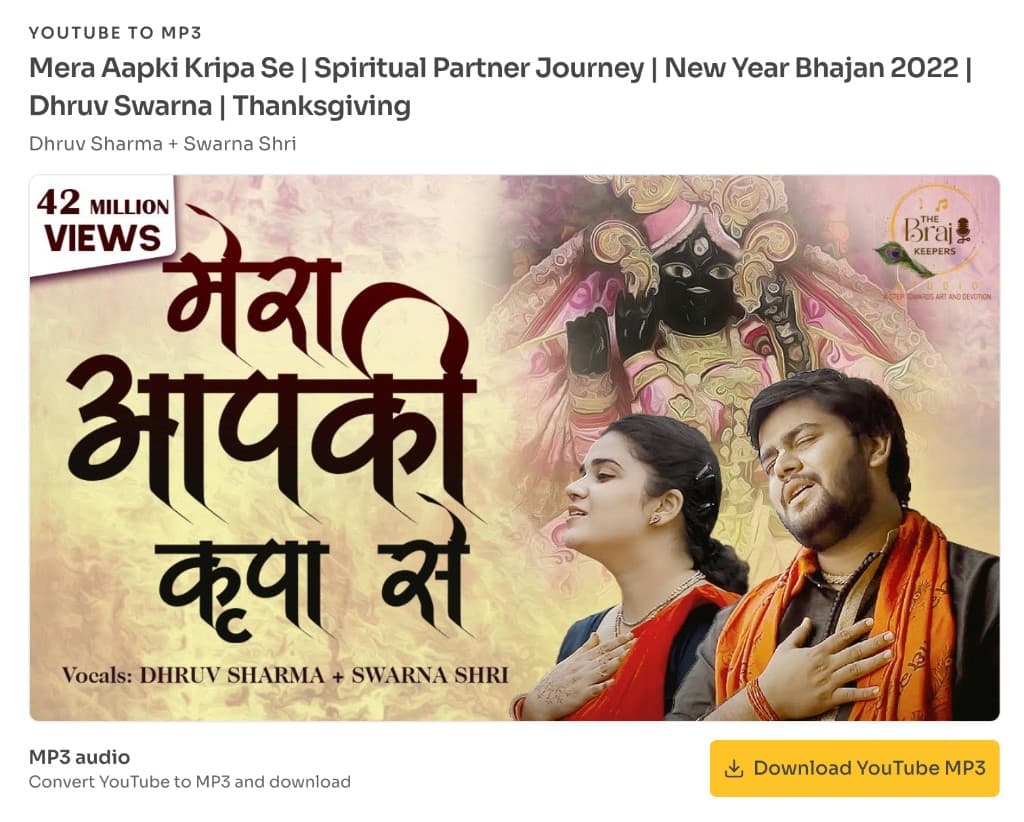
Paste the YouTube URL and click Load MP3 Audio (or Load Audio). Confirm the title, channel, and thumbnail match the clip you intended.

- 4
Step 4: Download the MP3
Click Download YouTube MP3, pick an available audio quality if listed, and stay on the page until Instant Download finishes. The MP3 saves to your browser Downloads folder (or Files on iPhone / Android).
Try YouTube to MP3 Converter
Free browser tool · Extract audio · Instant Download MP3
Open YouTube to MP3 ConverterMP3 Audio Quality Tips for Offline Listening
After the preview loads, FrontendGeek lists the audio options available for that upload. Higher bitrate usually sounds clearer but creates a larger file. For podcasts and speech, a mid option is often enough; for music you are allowed to keep, pick the highest available quality.
| Use case | Suggested approach | Why |
|---|---|---|
| Podcasts / talk | Mid MP3 quality | Clear speech, smaller files |
| Music (permitted) | Highest available MP3 | Best fidelity for listening |
| Quick reference clip | Lower bitrate | Fastest Instant Download |
| Need video + audio | Use YouTube to MP4 instead | Keeps picture and sound |
- Prefer listed MP3 / audio options — not video-only formats
- Higher bitrate ≈ clearer sound and larger files
- Speech and lectures usually sound fine at mid quality
- Stay on Wi‑Fi for long videos so Instant Download does not stall
- Test the file in your music app before deleting the tab
Extract YouTube Audio on Phone, Windows, or Mac
The same paste → load → Instant Download flow works in Chrome, Safari, Edge, and Firefox. Copy the link in the YouTube app or website, then finish in FrontendGeek.
iPhone / iPad
Copy link in YouTube → open FrontendGeek in Safari → paste → Download MP3 → save from Files / Downloads.
Android
Copy link → open FrontendGeek in Chrome → paste → Download MP3 → check Downloads or Files.
Mac
Paste in Safari or Chrome → Instant Download to your Downloads folder in Finder.
Windows
Paste in Chrome or Edge → Instant Download to File Explorer Downloads.
YouTube to MP3 vs YouTube to MP4 vs Music Tools
Pick the tool that matches the file you actually need. MP3 is audio-only. MP4 keeps video. Song and Music downloaders are tuned for track-style listening when you want a music-first flow.
| Goal | Best tool | Output |
|---|---|---|
| Extract audio only | YouTube to MP3 Converter | MP3 |
| Save music video / visuals | YouTube to MP4 Converter | MP4 |
| Song-focused MP3 | YouTube Song Downloader | MP3 |
| Music track / mix MP3 | YouTube Music Downloader | MP3 |
| Vertical Short audio | YouTube to MP3 (Shorts URL) | MP3 |
Legal & fair use reminder
Only extract audio you own, have permission to keep, or are otherwise allowed to save offline. Do not redistribute copyrighted music or podcasts without a license. Respect YouTube’s Terms of Service and creator rights. FrontendGeek tools are for legitimate offline use — not piracy.
Frequently Asked Questions
- How do I extract audio from a YouTube video for free?
Copy the YouTube URL, paste it into FrontendGeek’s YouTube to MP3 Converter, load the audio, and Instant Download the MP3 — no paid software required for permitted content.
- Does YouTube to MP3 keep the video file?
No. The converter extracts audio and saves an MP3. If you need picture and sound together, use the YouTube to MP4 Converter instead.
- Can I convert YouTube Shorts to MP3?
Yes. Paste a youtube.com/shorts/… or youtu.be link into the YouTube to MP3 Converter and download the audio the same way.
- Can I extract YouTube audio on my phone?
Yes. Use Safari on iPhone / iPad or Chrome on Android with the same paste-and-download flow.
- Where is the MP3 saved?
Files go to your browser’s Downloads folder on Mac and Windows, or to Downloads / Files on Android and iPhone.
- Is extracting YouTube audio legal?
Permissions matter. Safer cases include your own uploads, content you have a license to keep, or material the creator makes available for download. Do not pirate commercial music.
- Do I need FFmpeg or a desktop converter?
No. FrontendGeek runs in the browser — no FFmpeg install, desktop converter, or required extension.
- What if I only want songs or YouTube Music tracks?
For song-focused saves, try the YouTube Song Downloader or YouTube Music Downloader. For general video audio extraction, stay on YouTube to MP3 Converter.
Final Thoughts
Extracting YouTube audio as MP3 is the right move when you want portable sound without a large video file. Confirm the preview, pick a sensible audio quality, and only convert permitted content.
Ready to extract audio from a permitted YouTube video?
Try YouTube to MP3 ConverterOther YouTube Tools
Explore more free FrontendGeek YouTube tools for video downloads, Shorts, thumbnails, and titles.
Explore More Guides
 How to Download YouTube Videos for Free: Step-by-Step Guide (2026)
 How to Convert Youtube to MP4 for Free
 How to Download YouTube Music and Songs for Free — High Quality MP4
 How to Download YouTube Shorts for Free — Instant HD MP4 Download
 How to Extract Any YouTube Video Title and Description
Why Sometimes YouTube Downloads Have No Audio [Troubleshooting]
YouTube MP4 Download Not Working [Troubleshooting]
Understand Video Format & Quality — Best Video Quality to Download
Or browse the full Tools How to Guide.
Found this guide useful?
Share it with someone learning YouTube downloads